Three things matter most before any telehealth visit: test your camera, microphone, and internet connection ahead of time, find a private and well-lit spot to sit, and gather your medication list and questions. Sign on 10 to 15 minutes early so you have time to fix small problems before the appointment starts. These few steps are what separate a smooth virtual visit from a frustrating one.
TL;DR:
- If video fails, restart the app or refresh the browser, recheck permissions, switch networks or devices, then call the clinic’s support line.
- Have medication doses and schedules, allergies, recent tracked vital signs, prioritized symptoms, pharmacy contact details, and insurance questions ready for the clinician.
- About 1 in 5 households lack reliable internet; ask about phone visits, and request an office visit if a physical exam is needed.
- Before showing a rash or injury on camera, explain what you plan to do so your clinician can follow along and raise any concerns.
Table of Contents
- How do I test my device, camera, and internet before the visit?
- How do I set up a private, well-lit space for my appointment?
- What should I do if my video or audio stops working?
- What medical information should I have ready?
- How should I act and communicate during the call?
- What if I don’t have reliable internet or a video-capable device?
- How we help patients get ready for a virtual visit
- Ready to book your own virtual visit?
- FAQ
- Sources
How do I test my device, camera, and internet before the visit?
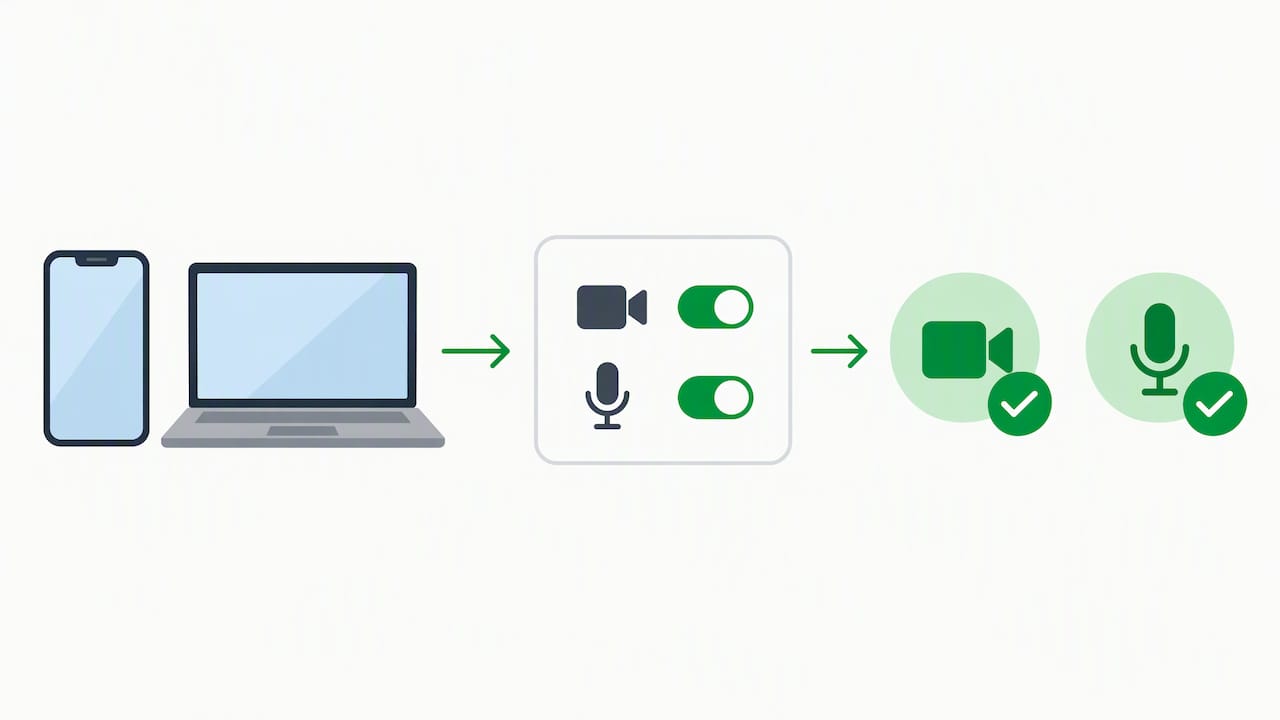
A smartphone, tablet, or computer with a working camera and microphone will handle almost any telehealth platform, though a larger screen makes it easier to see your provider and read any instructions they share. Before your appointment, open the app or browser you’ll use and check that it has permission to access your camera and microphone in your device settings.
A basic internet speed test a day or two beforehand tells you whether your connection can handle video. Lack of reliable broadband is common enough that it’s worth checking early: a significant portion of households lack a high-quality internet connection, according to Harvard’s Joint Center for Housing Studies, which is part of why fallback options matter so much for telehealth access.
Before your visit, make sure to:
- Charge your device fully or plug it in
- Close other apps and browser tabs that might slow your connection
- Confirm camera and microphone permissions are turned on
- Use wired headphones if you have them, for clearer audio and more privacy
How do I set up a private, well-lit space for my appointment?
Sit facing a window or lamp so your face is lit from the front rather than behind, and position your camera at eye level so your provider can see your face and expressions clearly. A kitchen table or desk near natural light usually works better than a dim living room corner.
Pick a room where you can close a door and limit who else is in earshot, especially if you’ll be discussing anything sensitive. If a caregiver, interpreter, or family member needs to join, let your provider know before the visit starts so they can plan accordingly.
Treat the appointment like you would an in-person one:
- Get dressed as you would for a regular appointment
- Turn off the TV and put your phone on silent
- Let household members know you’ll be unavailable for the duration
- Keep pets in another room if they tend to be noisy
Pro Tip: If you live with roommates or family, a bedroom with a closed door usually offers more privacy than a shared common area.
What should I do if my video or audio stops working?
Sign on 10 to 15 minutes before your scheduled time. This gives you room to troubleshoot without eating into your actual appointment, a step Telehealth.HHS.gov recommends as a standard part of visit prep. If something goes wrong once you’re signed on, try these in order:
- Restart the app or refresh the browser page
- Check that your camera and microphone permissions are still enabled
- Move closer to your Wi-Fi router or switch from Wi-Fi to cellular data
- Try a different browser or device if one is available
- Switch to a phone call for audio while the video issue gets sorted out
- Call the clinic’s support line if nothing else works
When you call for help, mention your device type, operating system, and which browser or app you’re using. That detail lets clinic support narrow down the fix much faster than a general description of “it’s not working.”
What medical information should I have ready?
Gathering your medical details ahead of time saves minutes that might otherwise go to searching for a pill bottle mid-visit. A clinical review on telemedicine preparation notes that patients who know their equipment needs and have relevant records ready tend to have more productive visits.
Before you log on, have these within reach:
- A complete medication list with names, doses, and schedule, or the bottles themselves
- Any relevant medical history, allergies, and recent vitals like weight, temperature, blood pressure, or glucose if you track them
- A short list of your main symptoms, ranked by what concerns you most
- Three to five specific questions you want answered
- Your pharmacy’s phone number and any insurance questions you want to raise
If you’re unsure what your plan covers for a virtual visit, it’s worth checking your coverage details, including what Medicare pays for telehealth, before the appointment rather than after.
How should I act and communicate during the call?
Look directly into your camera rather than at the screen when you’re talking. This simulates eye contact and helps your provider feel like you’re engaged, a practice outlined in research on webside manner for telemedicine visits. Headphones improve both the privacy of your conversation and the clarity of your audio.
If you need to show something, like a rash or an injury, say what you’re about to do first: “I’m going to lift my shirt to show you the area.” That small narration helps your provider follow along and gives you a chance to ask permission or raise concerns before you do it.
- Speak clearly and pause before responding so there’s no audio lag confusion
- Avoid eating, driving, or multitasking during the call
- Keep the camera steady and avoid walking around while talking
Pro Tip: If you’re demonstrating a skin issue, natural daylight or your phone’s flashlight usually shows more detail than overhead room lighting.
What if I don’t have reliable internet or a video-capable device?
Ask your provider directly whether a phone-only visit would work for your situation. Many conditions can be assessed by voice alone, and this avoids the stress of fighting a weak connection. About 1 in 5 households lack a high-quality internet connection, according to Harvard’s Joint Center for Housing Studies, so you’re far from alone if this applies to you.
- Ask your clinic ahead of time if a phone consultation is an option for your issue
- Check whether a local library or clinic offers a private room with internet access, and confirm privacy policies first
- Look into programs like Lifeline that help offset connectivity costs
- If your issue truly requires a hands-on exam, ask about scheduling an in-office visit instead
How we help patients get ready for a virtual visit
We give every patient a telehealth privacy checklist and clear consent documentation before their first appointment, so there’s no confusion about how their information is handled. We provide support for sign-on and connection troubleshooting to help prevent missed visits due to Wi-Fi issues. For patients managing ongoing care, we’ve also written about building a self-care routine around telehealth between appointments.
Ready to book your own virtual visit?
Once your device is charged and your questions are written down, the next step is simply getting on the calendar. Same-day virtual appointments are available with licensed clinicians across primary care and specialty areas, with prescriptions delivered to your door when appropriate.
Getting started is simple:
- Review and sign our consent to telehealth documentation
- Check whether your insurance applies to your visit type
- Book a primary care appointment or explore options like weight loss or birth control care
Same-day scheduling also means that if you need a quick follow-up after your first visit, getting back on the calendar rarely takes long. Visit Zealthy to create an account and find a time that works for you.
This article is general information, not a substitute for advice from a qualified doctor. Consult a qualified healthcare professional about your own circumstances before acting on anything here.
FAQ
What is the 7 day rule for telehealth?
This term usually comes up in specific billing or coverage contexts rather than as a universal telehealth rule, and its meaning can vary by payer or program. If you’ve heard this phrase from your insurer or provider, it’s worth asking them directly what it means for your specific plan and visit type.
Do I have to be on camera for a telehealth visit?
Not always. Many telehealth visits can be conducted by phone if video isn’t available or a provider determines it isn’t necessary for your situation, though video is generally preferred so the clinician can see you directly. Ask your provider ahead of time whether a phone-only option works for your appointment.
Do I need to download anything for a telehealth appointment?
It depends on the platform your provider uses. Some telehealth visits run entirely through a web browser link with no download required, while others ask you to install an app beforehand, so check your appointment confirmation for specific instructions.
What should I expect during a telehealth visit?
Expect your provider to ask about your symptoms, medications, and history much like an in-person visit, often while referencing details you’ve shared ahead of time. You may also be asked to show something on camera, like a rash, or to report measurements like your temperature or blood pressure if you’ve taken them beforehand.
Sources
- Telehealth
- Preparing for Telemedicine Visits: Guidelines and Setup - PMC
- Pandemic highlights disparities in high-speed internet service (Harvard JCHS blog)


.svg)
.svg)
.svg)
.svg)

